10-Point Security Checklist for IoT Devices on Home Wi-Fi
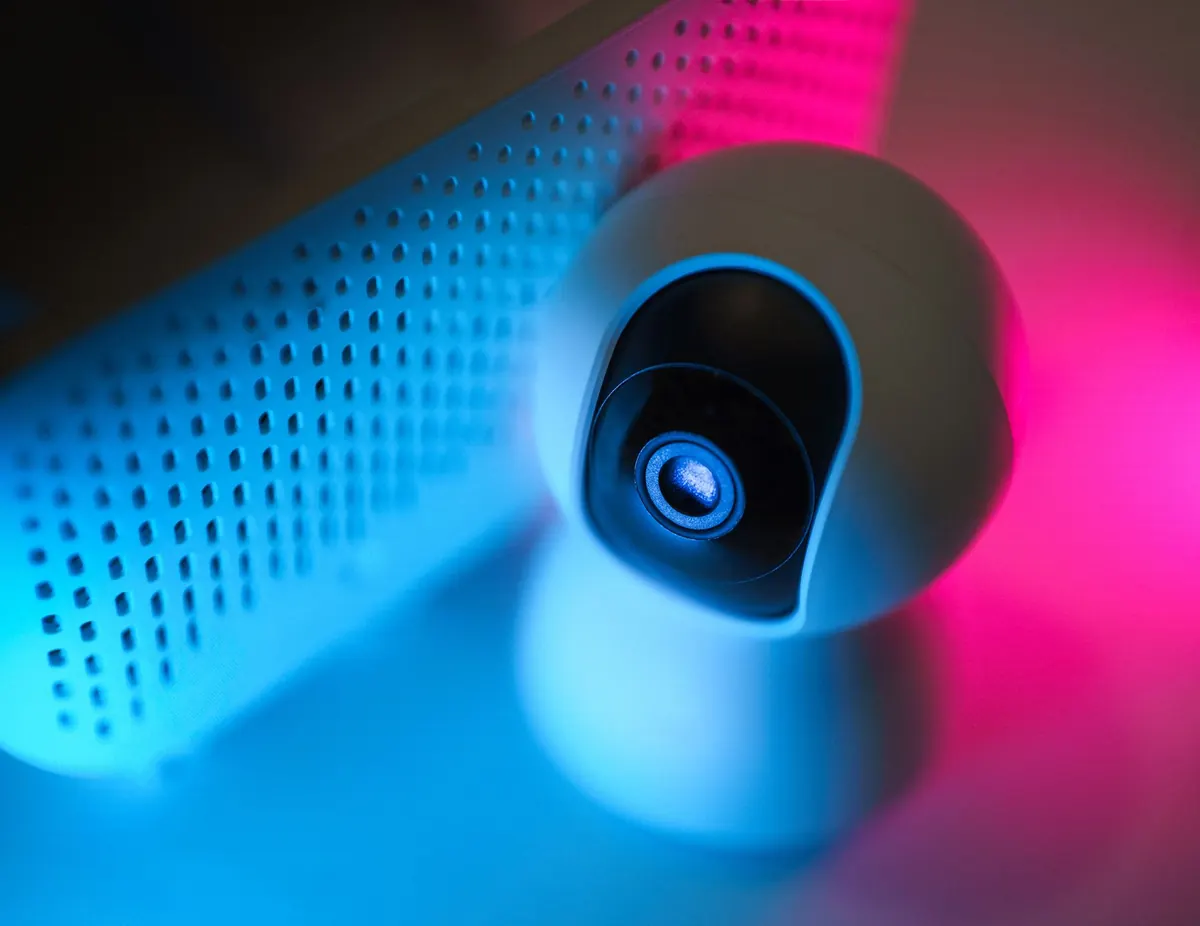
A smart plug in the hallway, a doorbell by the front door, a vacuum that maps your floors, a thermostat, a TV box. None of these feel like computers, and that is exactly the problem. They run software, hold login details, and talk to servers you have never heard of, usually with far weaker protections than the laptop you are reading this on. One neglected camera or a plug still using its factory password is often the easiest way into everything else on your home network.
You do not need a networking qualification to close that gap. You need an afternoon, a little patience through a few settings menus, and a routine you can repeat once a month. Work through the points below in order, because the early ones give the most protection for the least effort.
1. Deal With Passwords Before Anything Else
Factory logins are printed in the manual, and manuals are public. If a device ships with admin/admin or a sticker password, change it during setup, before the device ever joins your network. If the app is the only way in, that app account matters just as much: use a unique password there, not the one you use for email, and turn on two-factor authentication if it is offered.
Keep a simple record in a password manager so you are not tempted to reuse one password across six gadgets. And avoid the shortcut of setting a device password to your Wi-Fi passphrase. If one device leaks, you do not want to be resetting every lock and camera in the house.
2. Keep Firmware Current, and Notice When It Stops
Firmware is the operating system inside the device, and updates are how known flaws get closed. Most people never open the manufacturer app again after setup, which means years of missing patches.
Switch on automatic updates
Many hubs, cameras, and routers offer an auto-update toggle. Turn it on and let it work. For everything else, check the app or the device's web interface once a month. It takes a few minutes. Schedule the updates for a time when nobody is streaming or on a video call, and let the device reboot.
Recognise when support has ended
At some point a manufacturer stops shipping updates. When that happens, the device is no longer being fixed, only used. If it still has useful life, move it to the isolated network described below. If it is a camera pointed at your living room or a lock on your door, replacing it is the honest answer.
3. Put IoT Devices on Their Own Network
This is the single biggest structural improvement you can make at home. Most routers sold in the last several years can broadcast a guest network, and good ones include client isolation, which stops guest devices from talking to each other and to your main network.
Move the smart plugs, robot vacuum, TV box, and doorbell onto that guest network. Keep your phone, tablet, laptop, and any device holding sensitive files on the main network. If something on the guest side gets compromised, it has a very short path and nowhere useful to go.
One caveat: some devices insist on being on the same network as your phone for setup or local control. Set them up first, then move them, and check that the app still works. If it does not, decide whether you can live without local control, or whether that device belongs on your main network at all. For more separation, a second router in access point mode or a router that supports VLANs gives you the same idea with finer control.
4. Harden the Router Itself
Every device on your Wi-Fi passes through the router, so it deserves the most attention.
- Change the router's admin password, and make sure remote administration from the internet is switched off.
- Turn off WPS, the push-button pairing feature. It is convenient and it is a well-known weak spot.
- Use WPA2 or WPA3 with a long, unique passphrase. Avoid mixed modes only if your oldest devices cannot handle the newer standard.
- Update the router's own firmware, and check the port forwarding and DMZ pages for rules you did not add or no longer need.
- If your internet provider supplied the router and its settings are locked down, ask what can be changed, or put your own router behind it.
5. Turn Off the Features You Never Use
Modern routers and smart speakers ship with a lot of optional plumbing: universal plug and play, cloud recording, remote access, voice assistants always listening, and sharing features that lend a slice of your connection to nearby devices. Each one is another way in or another stream of data out.
Disable what you do not use. Turn UPnP off unless a game console or a specific app genuinely needs it, and test afterwards. Move camera footage to local storage if the option exists. If you never use the voice assistant on a speaker, switch the microphone off in the app. The goal is a shorter list of things that can go wrong.
6. Watch the Network, Not Just the Devices
Your router's client list is a surprisingly useful tool. Give every device a recognisable name while you remember which is which, then look at the list monthly. An unfamiliar name, a device you cannot place, or a gadget whose traffic spikes at three in the morning all deserve a second look.
If your router offers logging or email alerts for new devices, enable them. If it does not, a calendar reminder works fine. Keep the guest password for visitors, and change it if you ever see something odd. Rotating the Wi-Fi passphrase is inconvenient but effective, and it forces every device to re-authenticate.
The 10-Point Checklist
- Change every default password during setup, not later.
- Give each device a unique login, stored in a password manager.
- Enable automatic firmware updates where available; check the rest monthly.
- Retire or isolate devices that no longer receive security updates.
- Move IoT gadgets to a guest or isolated network.
- Change the router admin password; disable remote admin and WPS.
- Turn off UPnP and review port forwarding rules.
- Disable unused features: cloud recording, remote access, always-on microphones.
- Name every device in the router's client list so you can spot strangers.
- Check the client list and logs once a month.
Rule of thumb: if you cannot update it, isolate it.
Do It Once, Then Check Monthly
Pick a quiet weekend and work through the list from top to bottom. It will take an afternoon the first time and about fifteen minutes a month after that: glance at the client list, check for firmware notifications, and confirm nothing new has appeared.
Write down which device sits on which network, because in six months you will not remember. Update your home setup when you buy something new, before it goes online, and every device you add becomes a little less of a gamble.
Photo: Jakub Zerdzicki / Pexels